
Overview
Within MV2, there is a page named ‘Log Viewer’ that will display a filterable list of messages that have been written to MV2’s log files and certain database tables. This article will focus on the 'Provider Errors' section of the Log Viewer, where issues related to MV2 Transactions failing to update Business Central will appear.
Accessing the Log Viewer
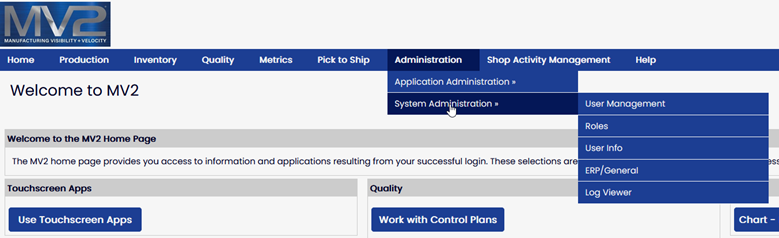
While logged in as a User who is assigned the System Administrator Role, from the Portal Menu, select Administration -> System Administration -> Log Viewer.
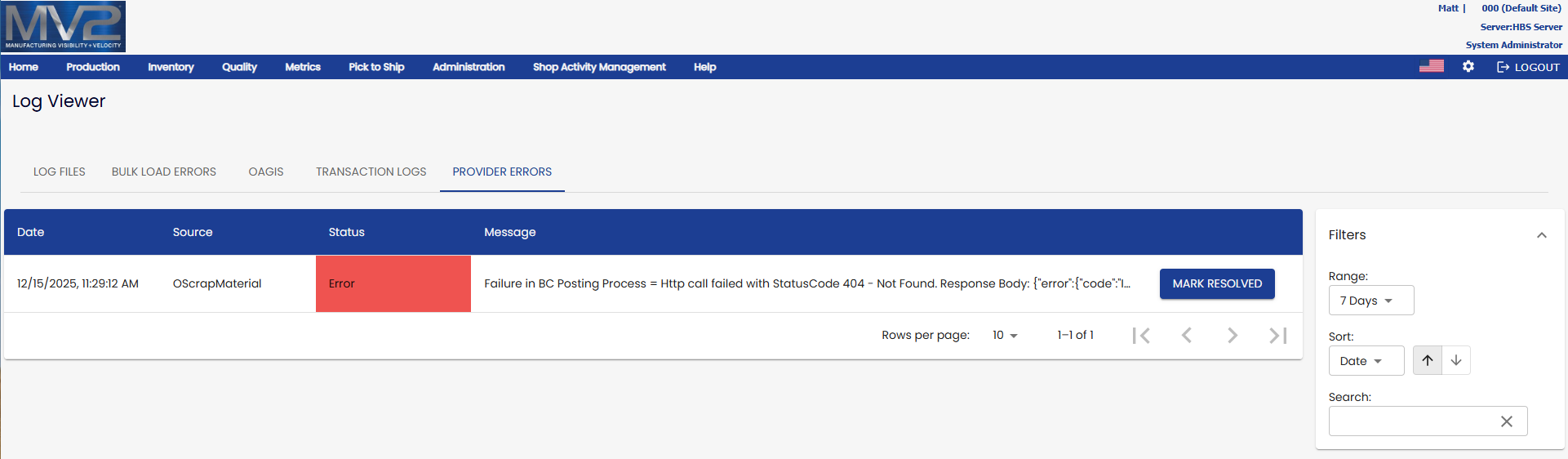
From the Log Viewer, select the 'PROVIDER ERRORS' tab. This tab contains information about transaction data that was unsuccessfully written to Business Central.
The 'Filters' section on the right side of the page allows the user to filter by Date Range, the sort column and if it should be sorted as ascending or descending, and lastly the user can enter a search string.
Posting Errors
If Business Central returned an error during the transaction journal Posting process, the Provider Log will have an entry with the status of Error.
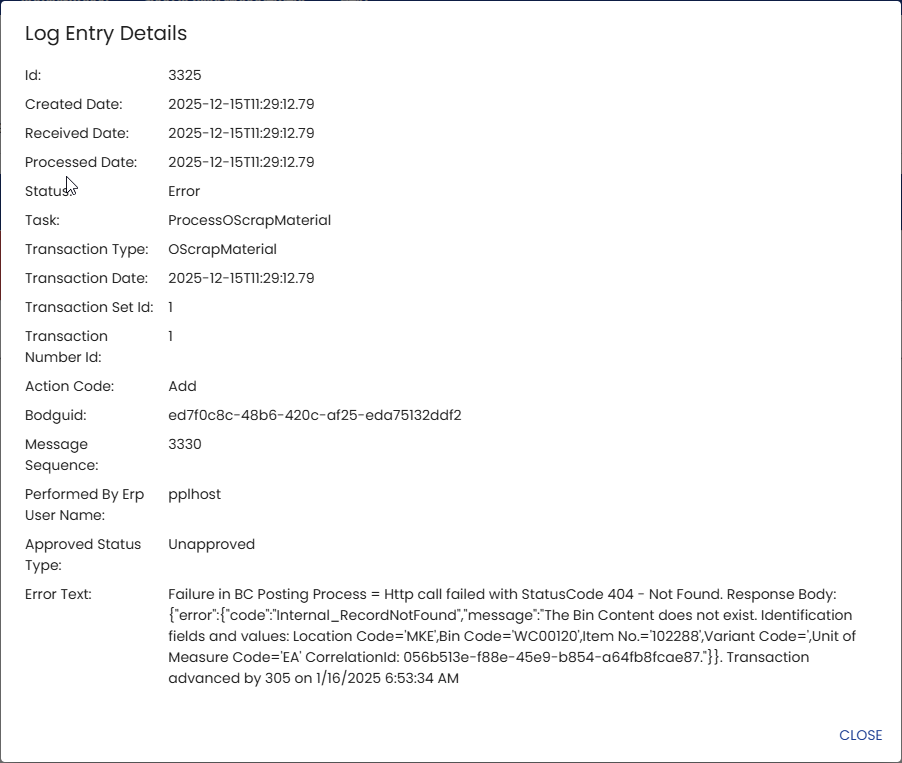
Clicking on a row will display additional details and the full Message value. The 'Error Text' value is what was returned to MV2 by Business Central and contains the error message and any specifics of what data was being processed when the error occurred.
See the link below for information about common errors you may see returned to MV2 from Business Central.
Link to the list of common errors returned by Business Central and their causes:
Troubleshooting - MV2 Transactions - Common errors returned by Business Central
Once the error has been resolved in Business Central, you must return to MV2's Log Viewer Page, click on the 'Provider Errors' tab and click the 'Mark Resolved' button for the issue that was resolved.
MV2 will not continue to process any additional transactions until this issue has been resolved in Business Central, and the 'Mark Resolved' button has been clicked.
Communication Errors
Sometimes Business Central will return a message to MV2 indicating that it encountered an unexpected condition preventing it from fulfilling a request (i.e. Business Central is busy, the MV2 Extension was removed, etc.) MV2 makes 3 attempts to write the transactions to the journal with a pause of 5 seconds between tries. If still unsuccessful, the Provider Log will have an entry with the status of CommunicationError and a 'Resend' button. Contact your Business Central support to determine what might be wrong. When resolved, press the 'Resend' button to make another attempt at processing the transaction.
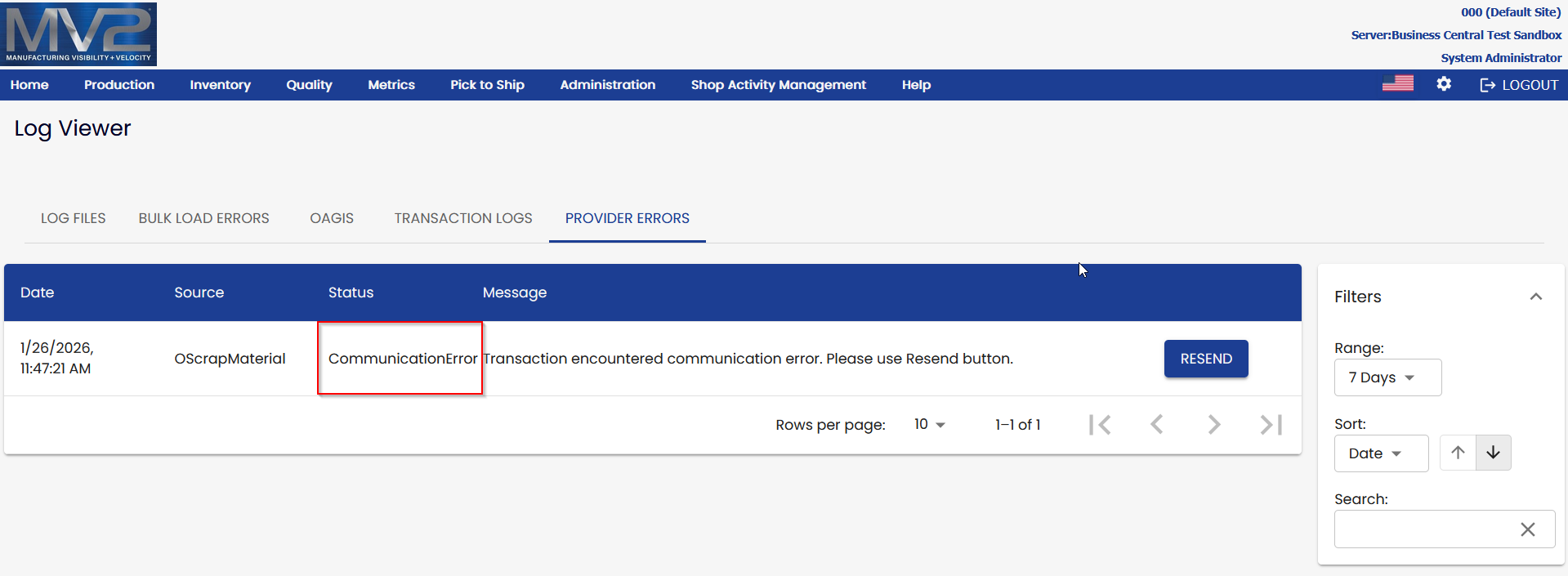
MV2 will not continue to process any additional transactions until this issue has been resolved in Business Central, and the 'Resend' button has been clicked.