
An RPO will be sent to MV2 if it’s Pick/Production status is “Ready to Go”

Any RPO won’t be sent if it’s Pick/Production status is “Pick Needed” until the Warehouse Pick has been performed for every Component item on the RPO.

To help determine whether or not an RPO was sent to MV2, please use the MV2 Log Viewer.
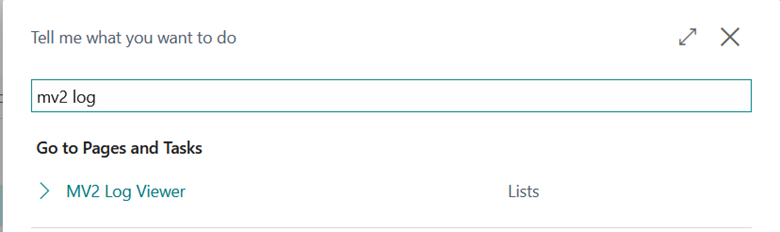
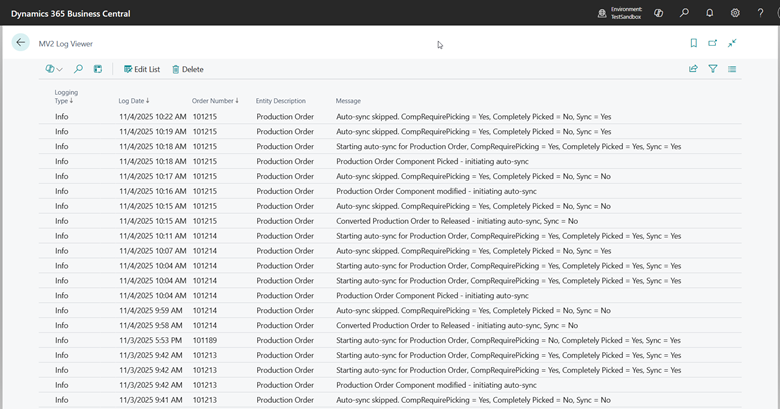
The log can be filtered to a specific RPO using 1 of 2 ways:
- Right click on the Order Number header, select ‘Filter’ and enter the RPO number.
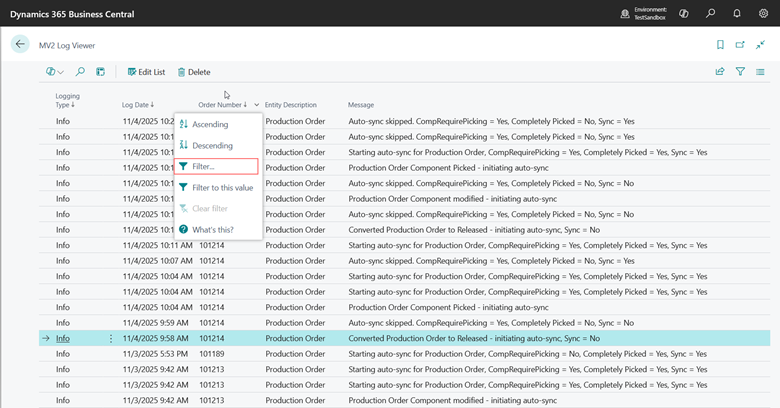
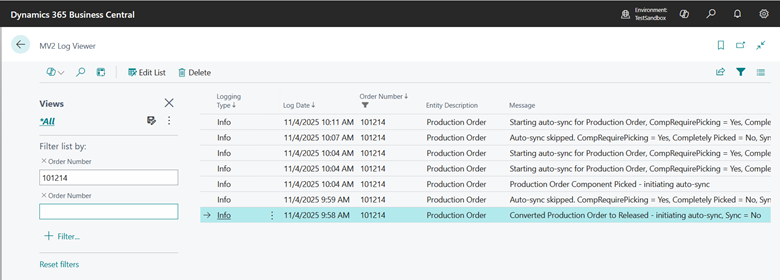
- With a row selected, right click on the Order Number header, select ‘Filter to this Value’
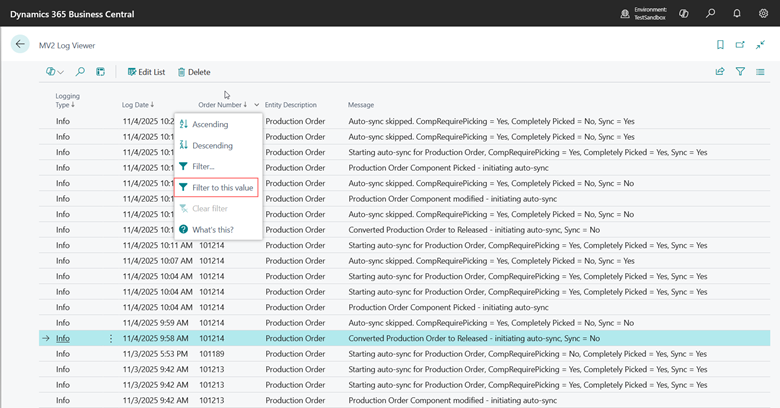
The log will display the values to 3 key fields used to determine whether or not the RPO is sent to MV2:
- CompRequirePicking = Do any of the Components on the RPO require a Warehouse Pick.
- CompletelyPicked = Have ALL the Components on the RPO requiring a Warehouse Pick been fully picked.
- Sync = Should the RPO be marked to be sent to MV2.
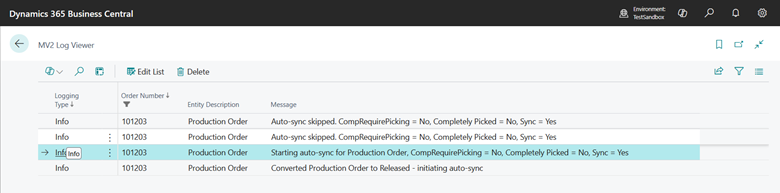
Reviewing the different example log lines highlighted below:
The order was converted from Planned/Firm Planned to Released and will be evaluated. The value of the Sync flag is No/False, therefore will not appear in MV2.
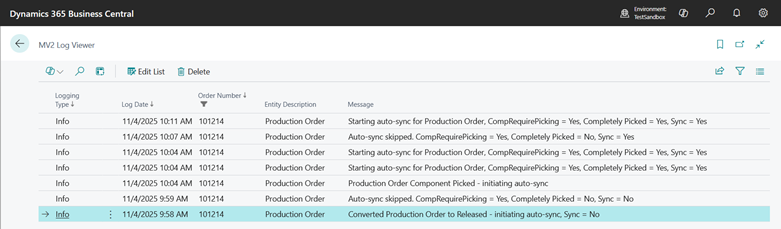
The order is being evaluated and determined to be skipped from being sent to MV2. The order requires picking (equivalent to the Pick/Production status is “Pick Needed”) and Sync flag remains No/False.
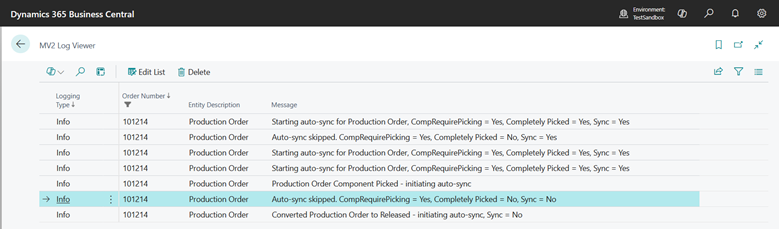
A component on the order is being picked and the order is being evaluated.
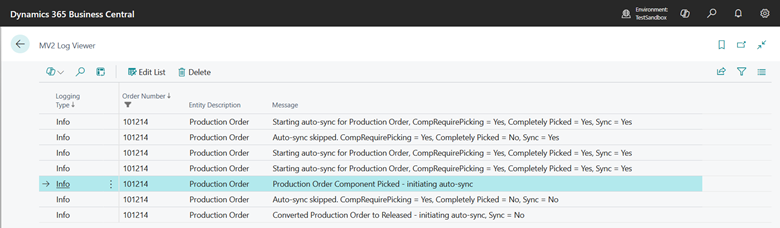
The order is being evaluated, and ALL components have been fully picked (and equivalent to the Pick/Production status is “Good To Go”). Sync flag is now set to Yes/True, therefore the Order, Routings and Components will be sent to MV2 and appear after the next sync cycle.
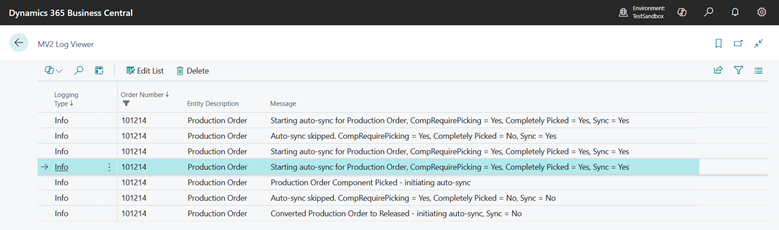
The order is being evaluated after a Pick, yet not ALL components have been fully picked. The order requires picking (equivalent to the Pick/Production status is “Pick Needed”) and Sync flag remains No/False.
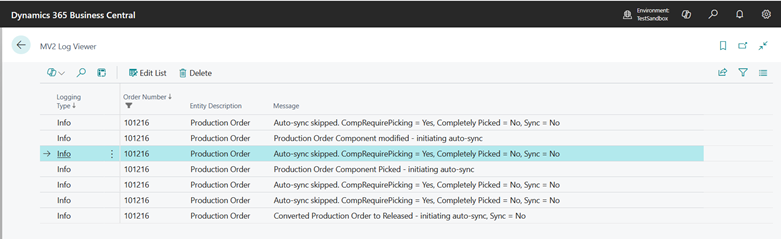
The order is being evaluated after conversion and NO components require picking (and equivalent to the Pick/Production status is “Good To Go”). Sync flag is now set to Yes/True, therefore the Order, Routings and Components will be sent to MV2 and appear after the next sync cycle.
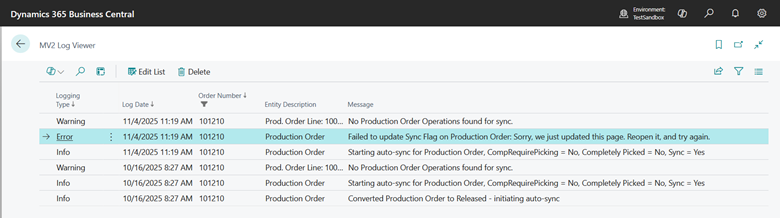
A Business Central event interrupted the sync evaluation process.
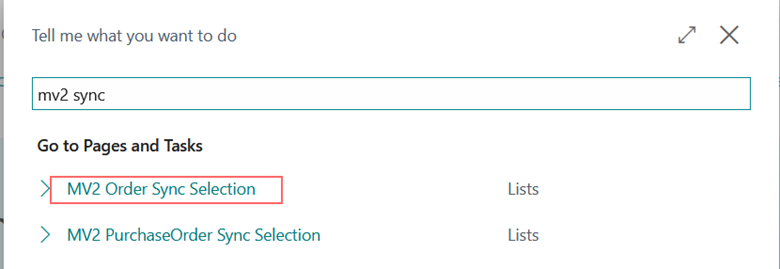
MV2 Order Sync Selection page.
Alternatively, view the Sync status of all RPOs using the MV2 Order Sync Selection page.
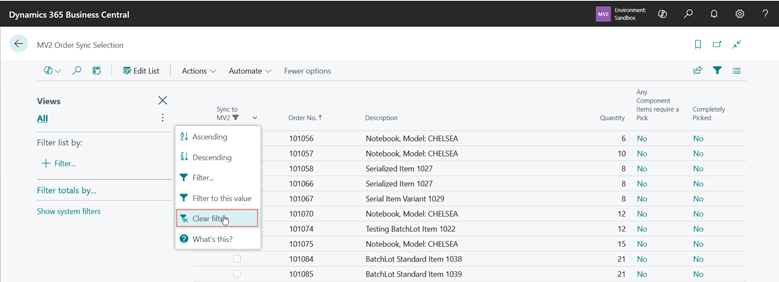
By default, the list is filtered by the Sync flag equal to No / False. Right click on the Sync to MV2 column and select “Clear Value” to see all the RPOs.
The provided list also shows the values to 3 key fields used to determine whether or not the RPO is sent to MV2.
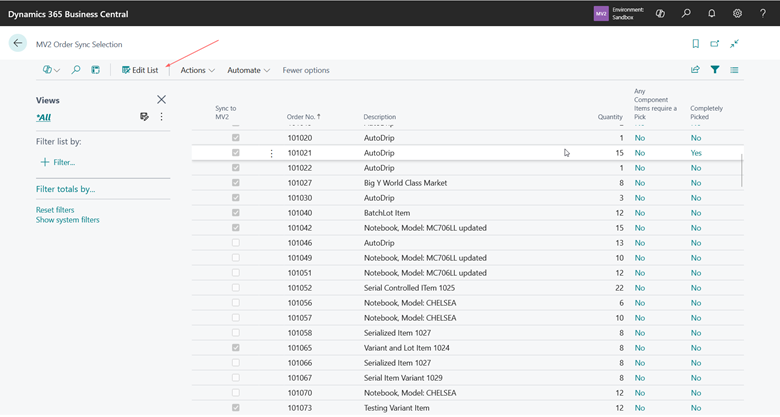
Checking the Sync to MV2 box will bypass the order evaluation and send the Order, Routings and Components to MV2. Enable the check box by pressing the “Edit List” button from the ribbon bar. Consequently, an Order can be removed from MV2 by unchecking the Sync to MV2 box.