
Overview
The health of the connection between MV2 and Business Central is integral to ensuring the data in both systems is accurate and up to date. This article details how to view the status of the integration and also how to configure an email notification if the communication between MV2 and Business Central fails.
Table of Contents
ERP Health Status
This page provides a general status of the components that support communication between MV2 and Business Central, the Provider Api and the Sync Service. Both of these are MV2 applications that manage the synchronization of data from Business Central into MV2 and also the publishing of MV2 transactions to the subscribing application(s), which in this case is the MV2 BC Sync Service.
*Note: The health status of the Sync Service is available in MV2 version 5.4.39 and later.
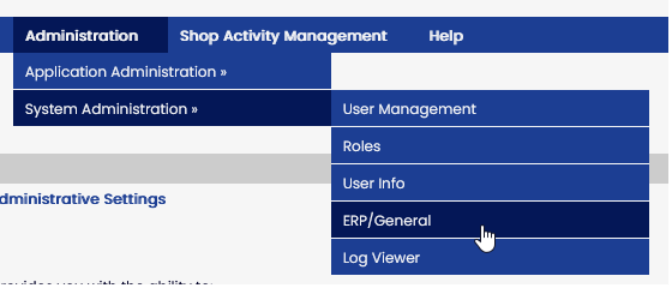
To navigate to the Health Status in MV2, select Administration -> System Administration -> ERP/General from the menu bar.
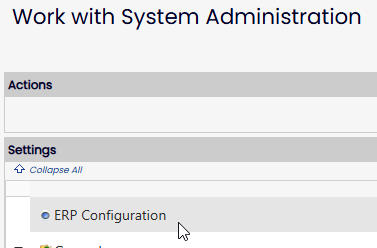
Select 'ERP Configuration' from the left pane.
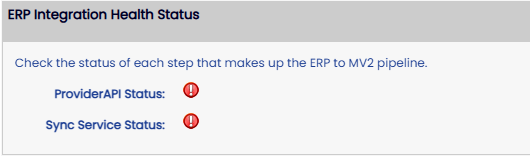
At the bottom of the right pane, you will find the ‘ERP Integration Health Status’ section. Expand that section and you will see the current statuses of the Provider API and Sync Service.
A status icon of a red circle with an exclamation mark means there is a communication error between MV2 and the Provider Api or Sync Service, which ultimately means MV2 is not communicating with Business Central. This affects the flow of data from Business Central to MV2 and also the transaction data from MV2 back to Business Central.
This condition requires assistance from the MV2 Team.
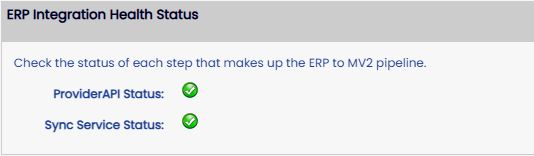
A status icon of a green circle with a checkmark indicates the communication between MV2 and the Provider API or Sync Service is working as intended, and ultimately the communication between MV2 and Business Central is functioning also.
There are scenarios where the communication may be working as intended, however validation errors may result in data not being transferred between MV2 and Business Central. In that situation, it is recommended that the information in the following Knowledge Base articles be reviewed to diagnose the issue.
MV2 Log Viewer - For MV2 to Business Central issues (Transactions)
MV2 Log Viewer - Business Central to MV2 (Synchronization)
Provider API notification email
The Provider Api is responsible for managing the flow of data between Business Central and MV2, and this includes synchronizing data from Business Central to MV2 and sending transaction data from MV2 to Business Central.
There will be instances where the Provider Api fails to send transaction data to Business Central, or when MV2 fails to Post the sent data in Business Central. In this case, the Provider Api will send an email notification to the configured email address(es) indicating an error and where to go to resolve the issue.
To support this, a new Role has been created named ‘Provider Api Notifications’.
In MV2, there are two methods to assign email addresses to a Role.
- Any user assigned to this specific Role will receive the email, provided their User is configured with an email address in MV2.
- One or more email addresses can be added to the Role itself.
Adding Users to the Role
Confirming the Email address of a User
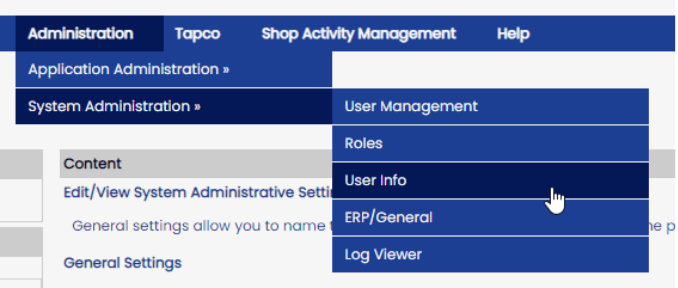
If the preferred method of associating an email address with a Role is to assign a User to the Role, first confirm the User has an email address associated with their User by navigating to Administration -> System Administration -> User Info.
Adding user to the Provider Api Notifications Role
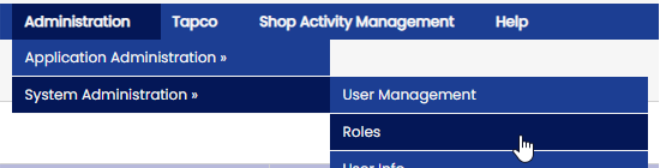
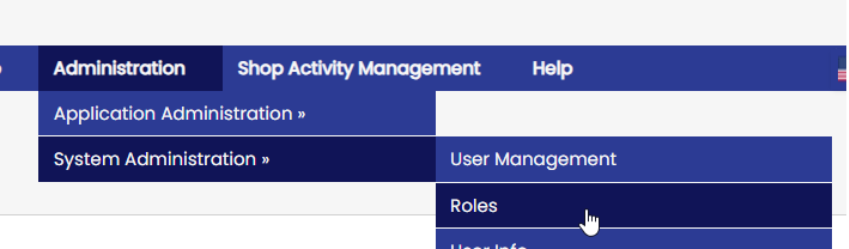
To add one or many Users to a Role, navigate to Administration -> System Administration -> Roles.
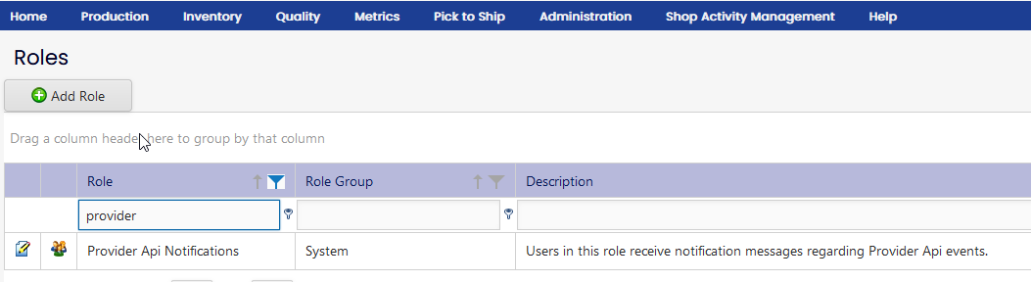
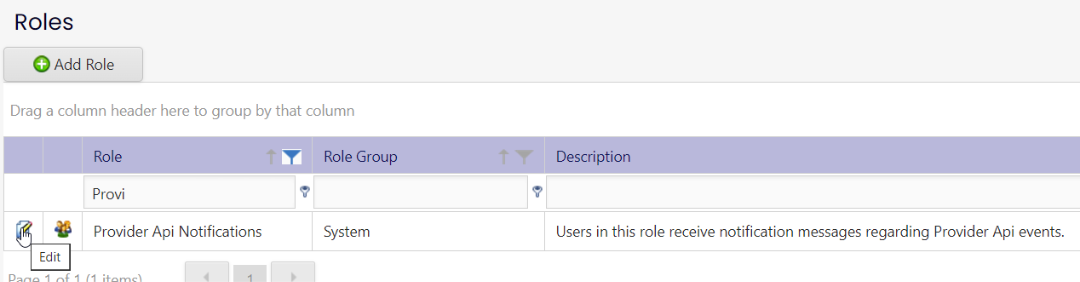
This page displays all the Roles available within MV2. Locate the ‘Provider Api Notifications’ Role.
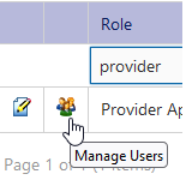
Click the ‘Manage Users’ icon to modify the Users associated with this Role.
Select the desired User(s) to add to the Role by clicking the checkbox in the left column for each User. Once all of the Users are selected, click the ‘Add Selected Users to Role’ link.
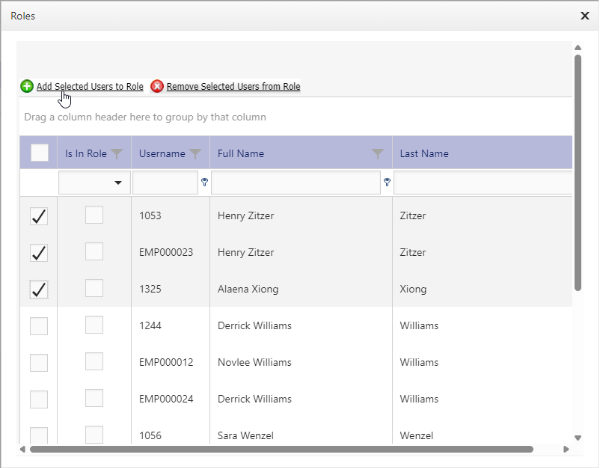
The screen will refresh and the added Users will now have their ‘Is In Role’ column checked.
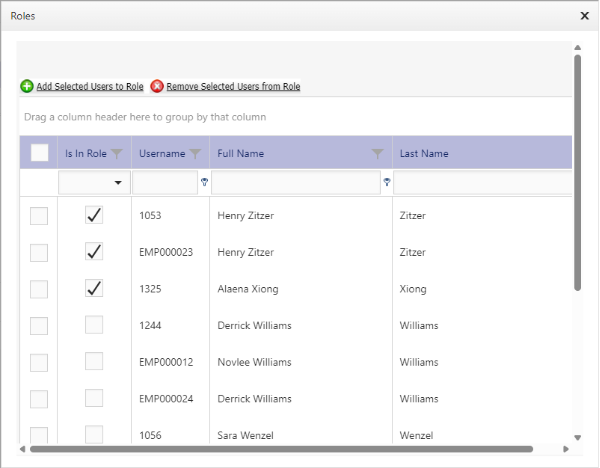
To remove Users from the Role, again select the desired Users and click the ‘Remove Selected Users from Role’ link. The screen will refresh and the ‘Is In Role’ column will be unchecked.
Add email address(es) directly to the Role
To add email addresses directly to the Role, navigate to Administration -> System Administration -> Roles.
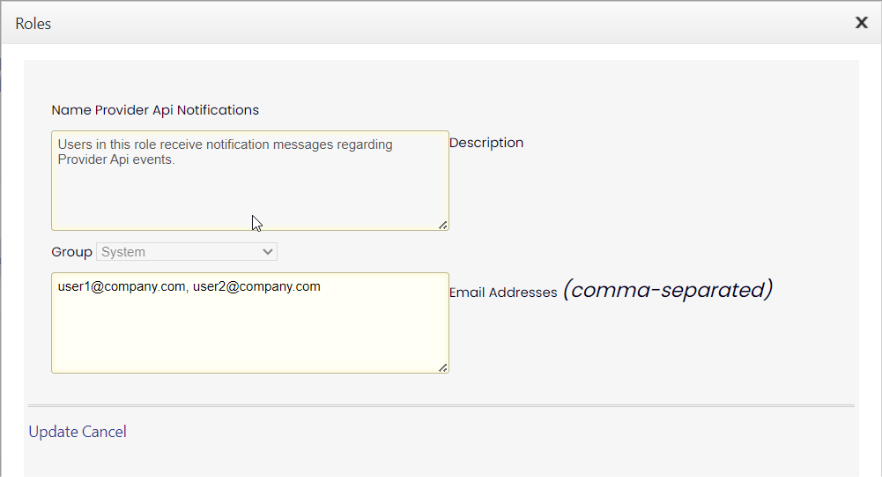
Locate the ‘Provider Api Notifications’ role and Edit the Role.
Enter one or more email addresses, comma separated, in the ‘Email Addresses’ section and press Update.
Notification emails
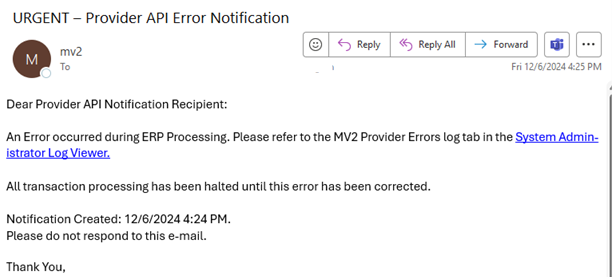
When the Provider Api determines an error has occurred with an MV2 transaction, it will send an email to the email address(es) associated with the ‘Provider Api Notifications’ Role, detailed above. Below is an example of that email and how to process it.
Sample email
The email message will come from ‘mv2’ and have a subject of “URGENT – Provider API Error Notification”.

The body of the email will contain a general message that the Provider API encountered an error when attempting to process a transaction in ERP. There will be a hyperlink to the MV2 Log Viewer page, which will display the details of the issue.
Issue Resolution
The process of interpreting the 'MV2 Provider Errors log tab' referred to in the email message above, and the subsequent resolution of any issues, is detailed in the following KB Article: